Invite a team member
Summary
Create an invitation link for a colleague's WhatsApp number and send it to them yourself.
Before you start
- A free seat on your plan. Starter has 1 login, Growth 3 and Pro 5, including yours.
- Your colleague's WhatsApp number.
Create the invitation
- 1
Open Settings → Users & roles.
- 2
Select Invite member.
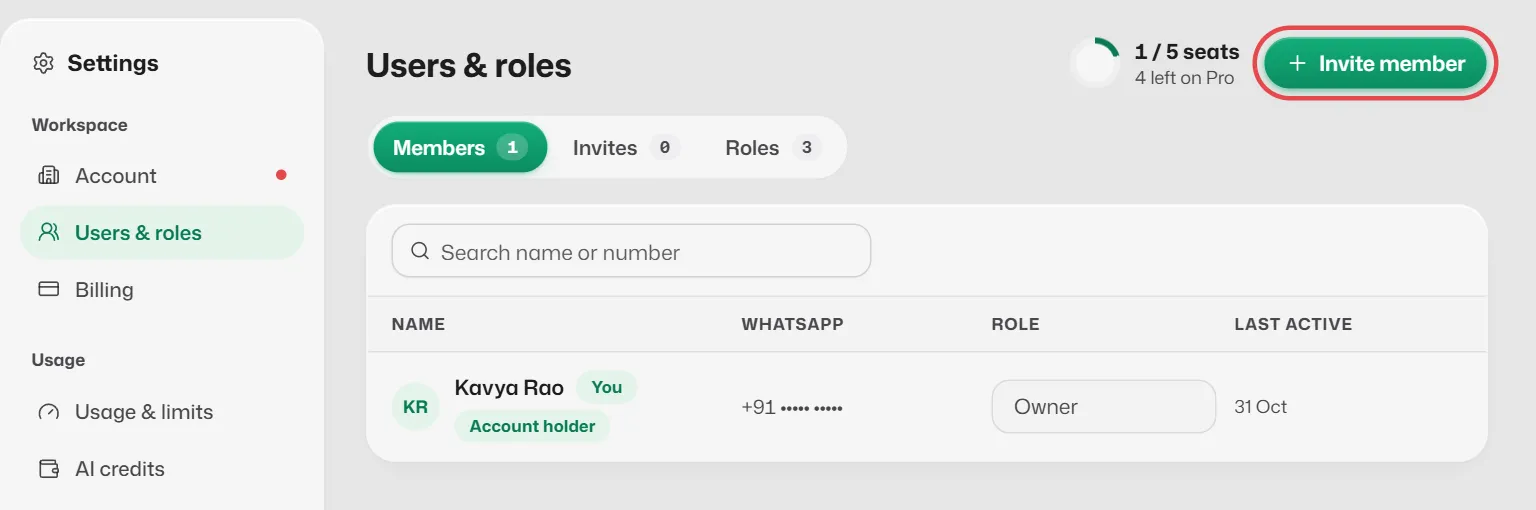
- 3
Type their WhatsApp number, their name if you like, and choose a Role. Select Create invite link.
- 4
On Invitation ready to send, select Open WhatsApp to send or Copy link and send it to them yourself.
Slot Reply does not send the link for you. It works once, only for that number, for 7 days.
What you should see
- The invitation shows under the Invites tab as Waiting until they join.
- When they join, they appear under Members with their role.
If something goes wrong
- "Every seat on your plan is in use or invited."
- Remove someone or withdraw an unused invitation. Below Pro you can also upgrade under Billing.
- The invitation shows Expired.
- Select Clear and create a new one.
Related articles
Join a team you were invited to
For staff: open the invitation link, verify your number with a WhatsApp code and start using the dashboard.
Roles and permissions
Owner, Manager and Receptionist: what each role can see and change.
Change a role, log someone out or remove a member
Look after the people who can log in to your business.
Still need help?
Search the FAQs or contact our team by email or phone.