Connect your WhatsApp number
Summary
Link your WhatsApp Business number to Slot Reply through Meta, so the assistant can answer on it.
Before you start
- You are the account owner. Managers and receptionists see "The account owner connects it".
- You can log in to Facebook with access to your business's Meta (Facebook) Business account.
- The phone number you want customers to message. Meta may ask you to verify it with a code.
Connect in one click
- 1
In the sidebar, select Connect WhatsApp.
- 2
Under Connect in one click, select Connect WhatsApp. A Facebook window opens.
If nothing opens, your browser blocked the pop-up. Allow pop-ups for this site and select Connect WhatsApp again.
- 3
Log in to Facebook, choose your business and pick the number the assistant should answer on. Follow Meta's steps until the window closes by itself.
- 4
Back in Slot Reply, wait while it says Connecting….
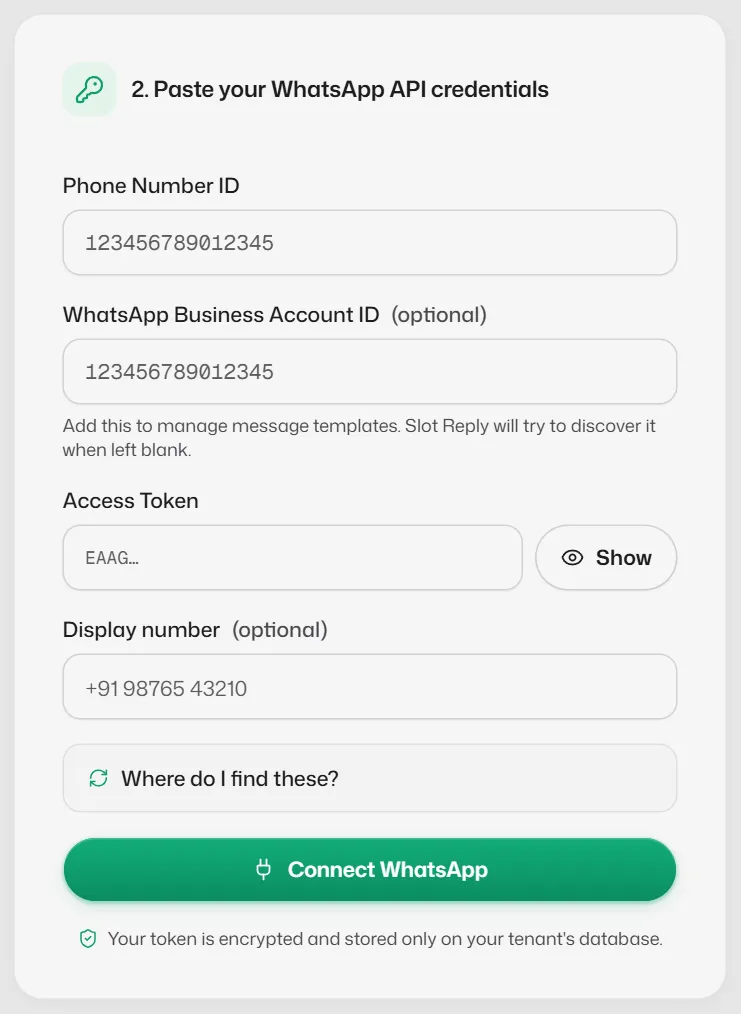
If you see a form with Phone Number ID and Access Token
Some accounts are set up to connect by hand instead. This needs details from Meta's developer settings, so we recommend doing it with our team.
- Point Meta at Slot Reply: copy the Callback URL and Verify token into your Meta app's webhook settings.
- Paste your WhatsApp API credentials: Phone Number ID, WhatsApp Business Account ID, Access Token and the display number.
- Open Where do I find these? on that screen for where each one is in Meta.
Not sure? Contact support before you start.
What you should see
- The screen says WhatsApp connected and shows your display number.
- The WhatsApp Business card on Home shows your number and Working.
- Messages your customers send to that number now appear in Conversations.
If something goes wrong
- "The Facebook window was closed before setup finished."
- Nothing was changed. Select Connect WhatsApp and go through Meta's steps to the end.
- "Couldn't load Facebook's SDK."
- An ad blocker or a slow connection stopped Facebook's login from loading. Turn the blocker off for this site and reload the page.
- "Disconnect the current WhatsApp number before connecting another one."
- One business has one number. Disconnect the old one first.
- "That WhatsApp number is already connected elsewhere."
- The number is linked to another Slot Reply account. Disconnect it there, or contact support.
- "Meta stopped the setup" or "Meta rejected the credentials".
- Meta refused the request and the message says why. Fix it in Meta, then try again. If the reason is unclear, contact support with the exact message.
Related articles
WhatsApp connection status and warnings
What Working, Some messages failing, Not sending and Not connected mean, what Home's status card shows, and what to do when a warning appears.
Disconnect your WhatsApp number
Stop Slot Reply from using your number, for example before moving to another number.
Turn auto-replies on or off
Pause the assistant for the whole business, for example during a team meeting, and switch it back on.
Still need help?
Search the FAQs or contact our team by email or phone.