Add and edit services
Summary
List what you offer with a price and duration, so the assistant can quote prices and book the right length of time.
Add a service
- 1
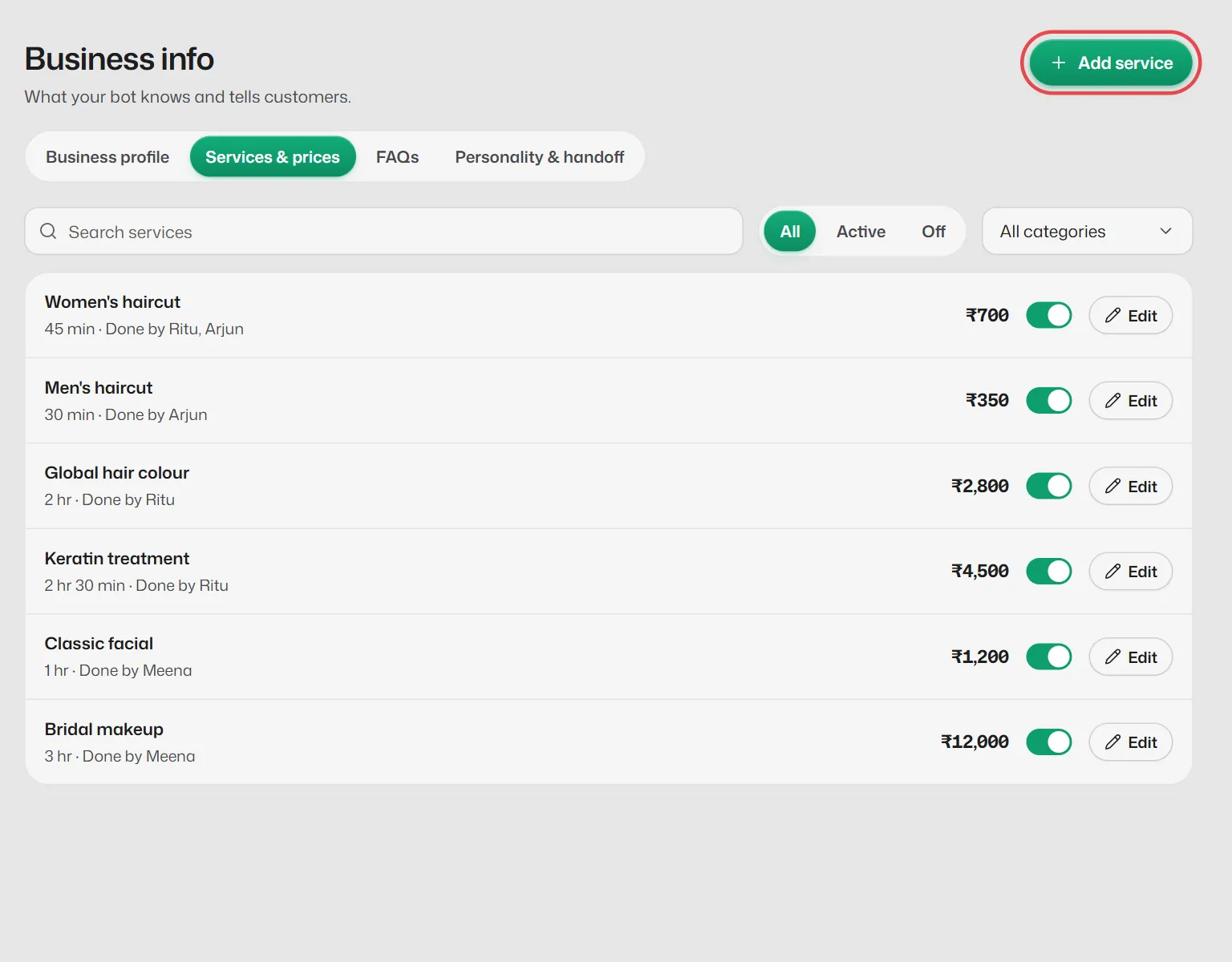
Open Business info → Services & prices.
- 2
Select Add service. A panel opens on the right.
- 3
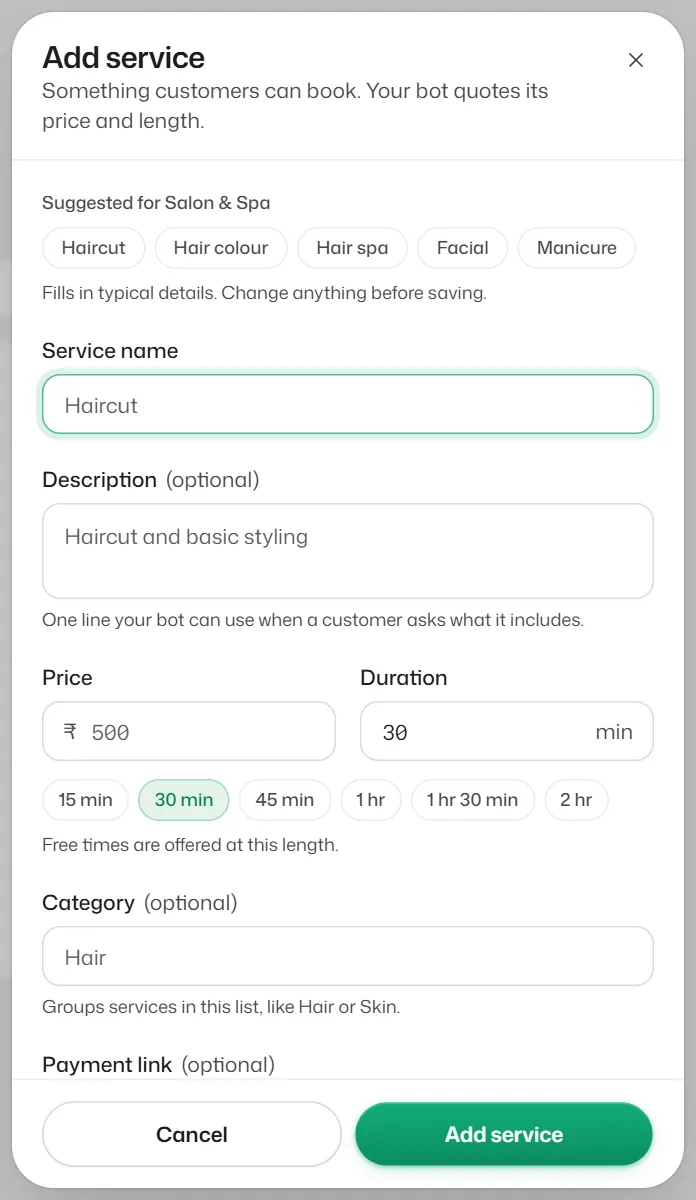
Tap a Suggested for… chip to fill in a typical service, or type your own Service name.
- 4
Enter the Price (₹) (use 0 if it is free) and the Duration (min). Description, Category and Payment link are optional.
The duration decides how long the booking blocks in the diary, so make it realistic.
- 5
Leave Active on and select Add service.
Choose who does each service
Who can do a service is set on the staff side, not in the service. Open Bookings → Staff, select Edit on a person and tick their services. See Add staff and their working hours.
Switch off or delete
- Turn a service's switch off to stop offering it without losing it.
- A service with open bookings, people on the waitlist or a reply flow step cannot be deleted. Switch it off instead.
What you should see
- The service shows in the list with its duration, price and who does it. The assistant can now quote and book it.
If something goes wrong
- "Your plan includes 5 active services."
- Switch one off, or upgrade in Settings → Billing.
- "… already exists and is switched off."
- Switch the existing service back on instead of adding it again.
- "Use between 5 and 480 minutes."
- A service can last from 5 minutes to 8 hours.
- The row says Done by nobody yet.
- Nobody can be booked for it. Tick it for at least one person under Bookings → Staff.
Related articles
Add staff and their working hours
Add the people (or tables, or crews) customers can be booked with, their services, days and time off.
Add FAQs
Write answers to the questions customers ask most, such as parking, payment methods or your cancellation policy.
Check your plan's limits
See how many live flows, FAQs, staff, services and logins you use against what your plan allows.
Still need help?
Search the FAQs or contact our team by email or phone.