Set your opening hours, breaks and holidays
Summary
The assistant only offers booking times inside your hours, skips your breaks and never books on a holiday.
Weekly hours
- 1
Open Business info → Business profile and find the opening hours row. Select Edit hours.
- 2
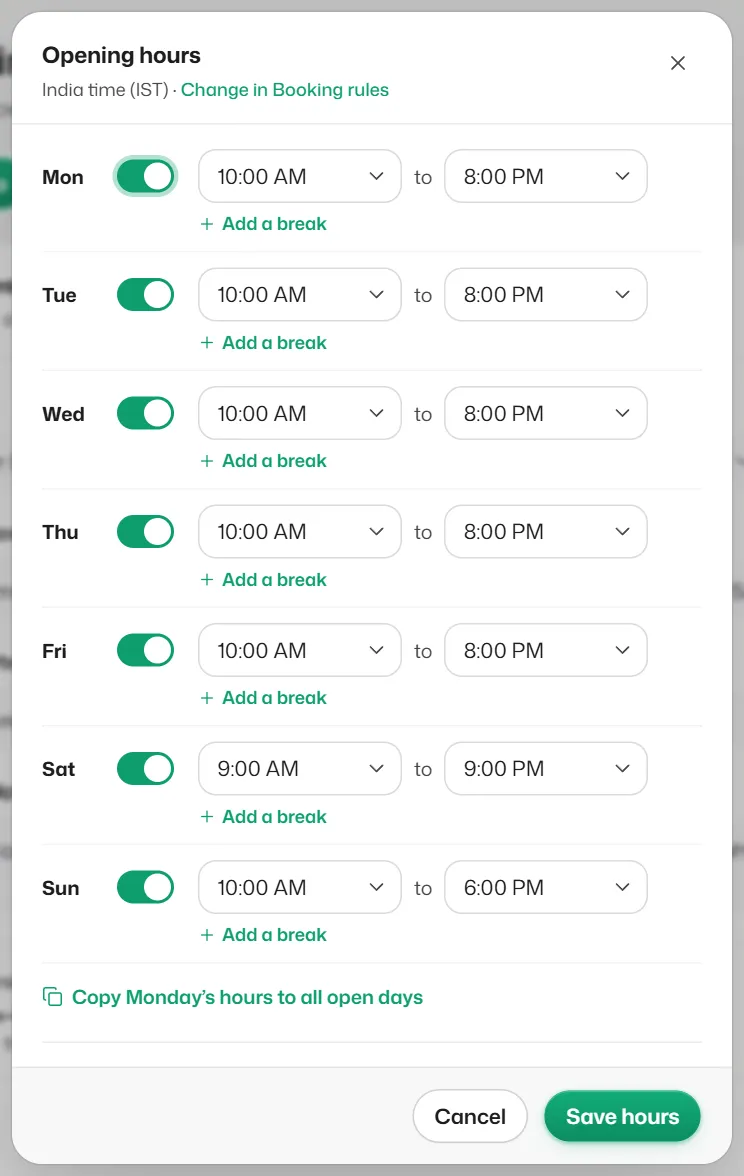
Switch each day on or off and choose its opening and closing times.
- 3
To add a lunch break, select Add a break. A day can have up to 3 breaks.
- 4
To use the same times every day, select Copy Monday's hours to all open days (the day name changes).
- 5
Select Save hours.
Open late? Choose a closing time marked (next day). Open all day is 12:00 AM to midnight.
Holidays and closed days
- 1
In the same window, under Holidays & closed days, select Add a date.
- 2
Pick the date and, if you like, give it a name such as "Pongal".
- 3
Select Save hours.
Coming up: suggests festival dates you can add with one tap. You can keep up to 60 closed dates.
What you should see
- You see Opening hours saved. The assistant answers "are you open?" and offers times from these hours.
If something goes wrong
- "Opening and closing can't be the same time."
- For a business open all day, use 12:00 AM to midnight.
- "Breaks must fall inside the opening hours."
- Move the break so it starts after opening and ends before closing.
- Customers are not offered any times.
- Check your hours are saved and that at least one staff member is bookable and works that day. See Customers are not offered any times.
Related articles
Fill in your business profile
Your business name, contact details, address and description: what the assistant tells customers about you.
Add staff and their working hours
Add the people (or tables, or crews) customers can be booked with, their services, days and time off.
Booking rules
Time slots, notice, how far ahead people can book, who they book with, no-shows and freed-up times.
Still need help?
Search the FAQs or contact our team by email or phone.