Add staff and their working hours
Summary
Add the people (or tables, or crews) customers can be booked with, their services, days and time off.
Staff here are people customers book with. They do not get a login. To give someone access to the dashboard, invite them to your team.
Add someone
- 1
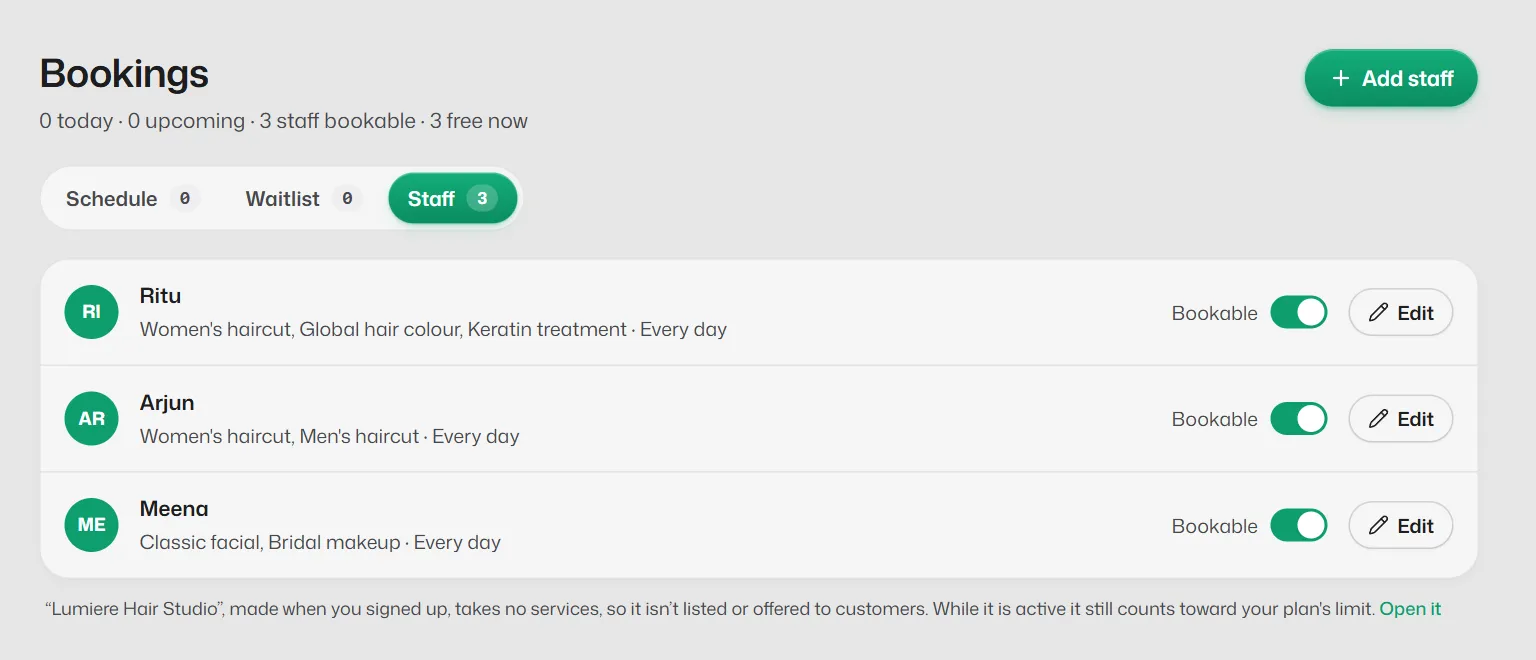
Open Bookings → Staff and select Add staff.
- 2
On Details, type their Name and, if you like, a Designation and phone (for your reference only; nothing is sent to it).
- 3
On Services, tick what they do, or Tick all.
- 4
On Availability, leave Use business hours on, or set their own weekly hours.
- 5
Save. Keep Active and Bookable on.
Restaurants see Tables and home cleaning businesses see Crews instead of Staff. They work the same way.
Quick changes
- 1
Select Edit on a row to change their services and working days.
- 2
Select Save changes in the bar at the bottom. Existing bookings are not changed.
Time off
- 1
Open the person with More settings, then Availability.
- 2
Under Time off, choose the dates (all day or certain hours) and select Add time off.
Someone left
Staff cannot be deleted. Switch Active off so they are no longer booked and no longer count towards your plan.
If something goes wrong
- "Nobody will be taking bookings."
- You are making the last bookable person unbookable, so the assistant will have no times to offer. Select Keep editing unless you mean it.
- Time off cannot be added.
- Save the person first, then add time off.
Related articles
Add and edit services
List what you offer with a price and duration, so the assistant can quote prices and book the right length of time.
Set your opening hours, breaks and holidays
The assistant only offers booking times inside your hours, skips your breaks and never books on a holiday.
Customers are not offered any times
When the assistant says nothing is free, or offers no booking times.
Still need help?
Search the FAQs or contact our team by email or phone.