Use the Bookings diary
1 min read
Summary
See the day's appointments on the timeline or as a list, search past bookings and filter by staff or status.
The Schedule tab
- The line under the title shows today's bookings, upcoming bookings, staff who can be booked and how many are free now.
- Timeline shows one day, one row per staff member. Use the arrows, Today or the date picker to change day, and the staff filter to show one person.
- List has Today, Upcoming and Past (the last 90 days), a search box and a status filter.
- Click a booking to see its details and actions.
The timeline shows one day at a time. A week view is not available.
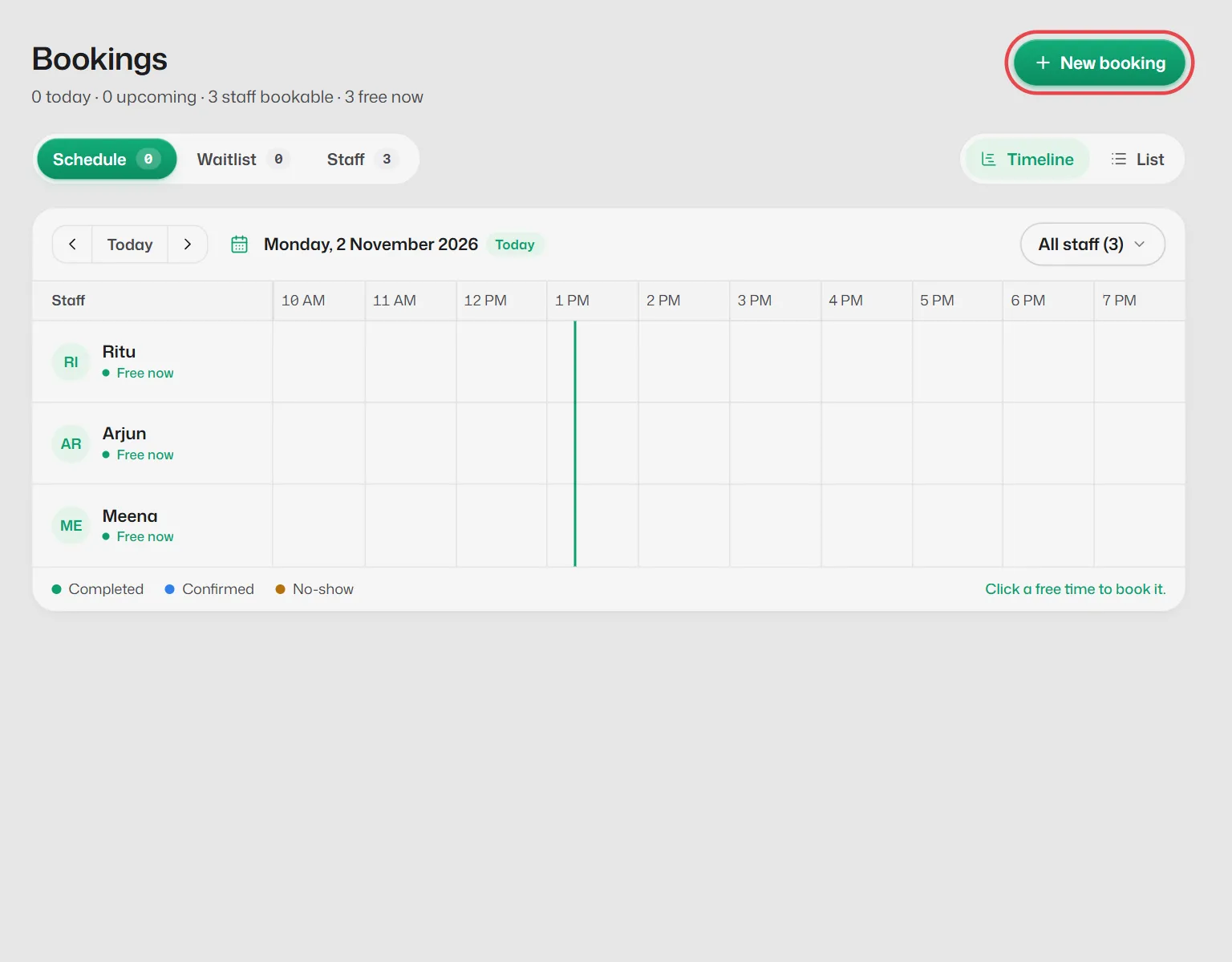
Statuses
- Confirmed: booked and coming up.
- Completed: the appointment happened.
- No-show: the customer did not come.
- Cancelled: cancelled by you or the customer.
If something goes wrong
- The timeline says Set your opening hours.
- Select Set your hours (managers and owners), or ask a manager. See Opening hours.
Related articles
Add a booking yourself
Book a walk-in or phone customer into the diary, and optionally send them a WhatsApp confirmation.
Reschedule, cancel or mark a no-show
Move a booking to another time, cancel it, or record whether the customer came.
Add staff and their working hours
Add the people (or tables, or crews) customers can be booked with, their services, days and time off.
Still need help?
Search the FAQs or contact our team by email or phone.