Add a booking yourself
Summary
Book a walk-in or phone customer into the diary, and optionally send them a WhatsApp confirmation.
Add a booking
- 1
Open Bookings and select New booking. Or click a free time on the timeline: the person and time are filled in for you.
- 2
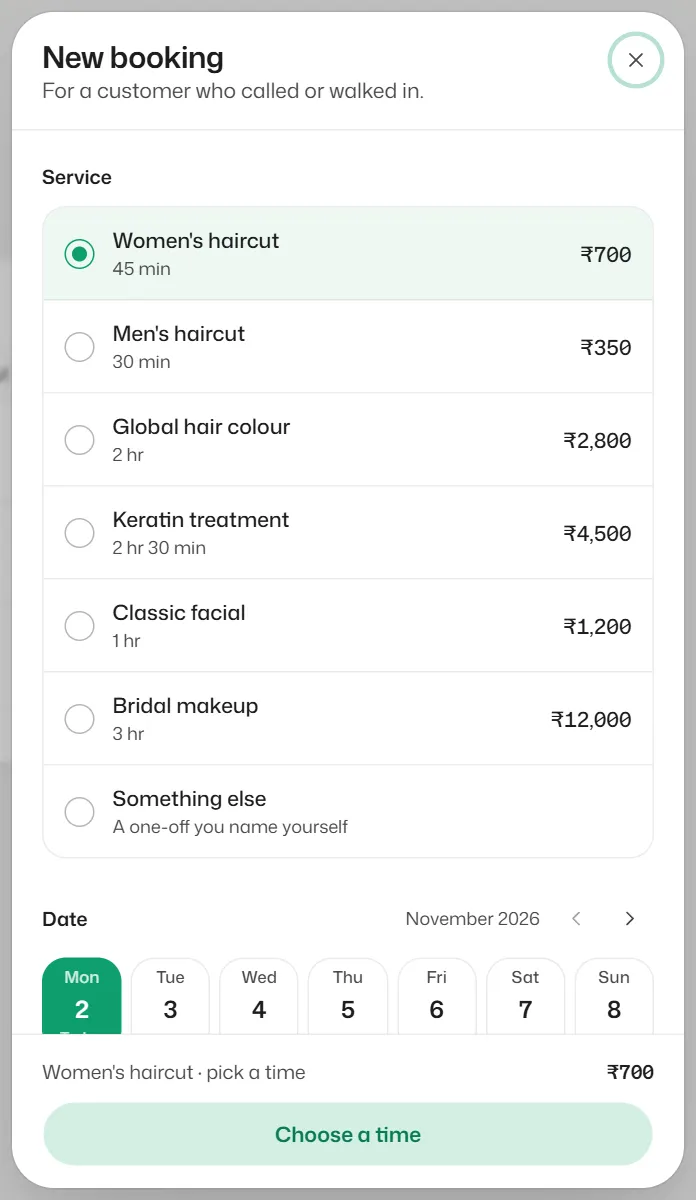
Pick a service, or Something else and say what it is for.
- 3
Pick a day from the next 14 days, then a time. Days marked Closed or Full cannot be booked.
- 4
Type the customer's name. Phone and notes are optional.
Send confirmation on WhatsApp only works if this number has messaged you before.
- 5
Select Confirm booking.
From a chat, open the customer details panel and select New booking under Appointments.
What you should see
- You see Booked for and the customer's name. Select Book another or Done.
If something goes wrong
- "That time overlaps another booking."
- Pick another time or another staff member.
- "That time is outside your business hours" or "That day is one of your holidays."
- Choose a time inside your opening hours.
- "That time is too soon to book" or "That day is too far ahead to book."
- Your Minimum notice and Book up to rules stop it. Change them in Booking rules.
- "Booked, but no confirmation was sent."
- The booking is saved. The customer has not messaged you in the last 24 hours, or no approved confirmation template exists. Tell them another way.
Related articles
Use the Bookings diary
See the day's appointments on the timeline or as a list, search past bookings and filter by staff or status.
Reschedule, cancel or mark a no-show
Move a booking to another time, cancel it, or record whether the customer came.
Submit the booking templates
Get the confirmation, reminder, moved, cancelled and team alert templates approved so those messages always arrive.
Still need help?
Search the FAQs or contact our team by email or phone.