Find your way around the inbox
2 min read
Summary
Filter chats, see who is answering each one, and find a customer by name or number.
The chat list
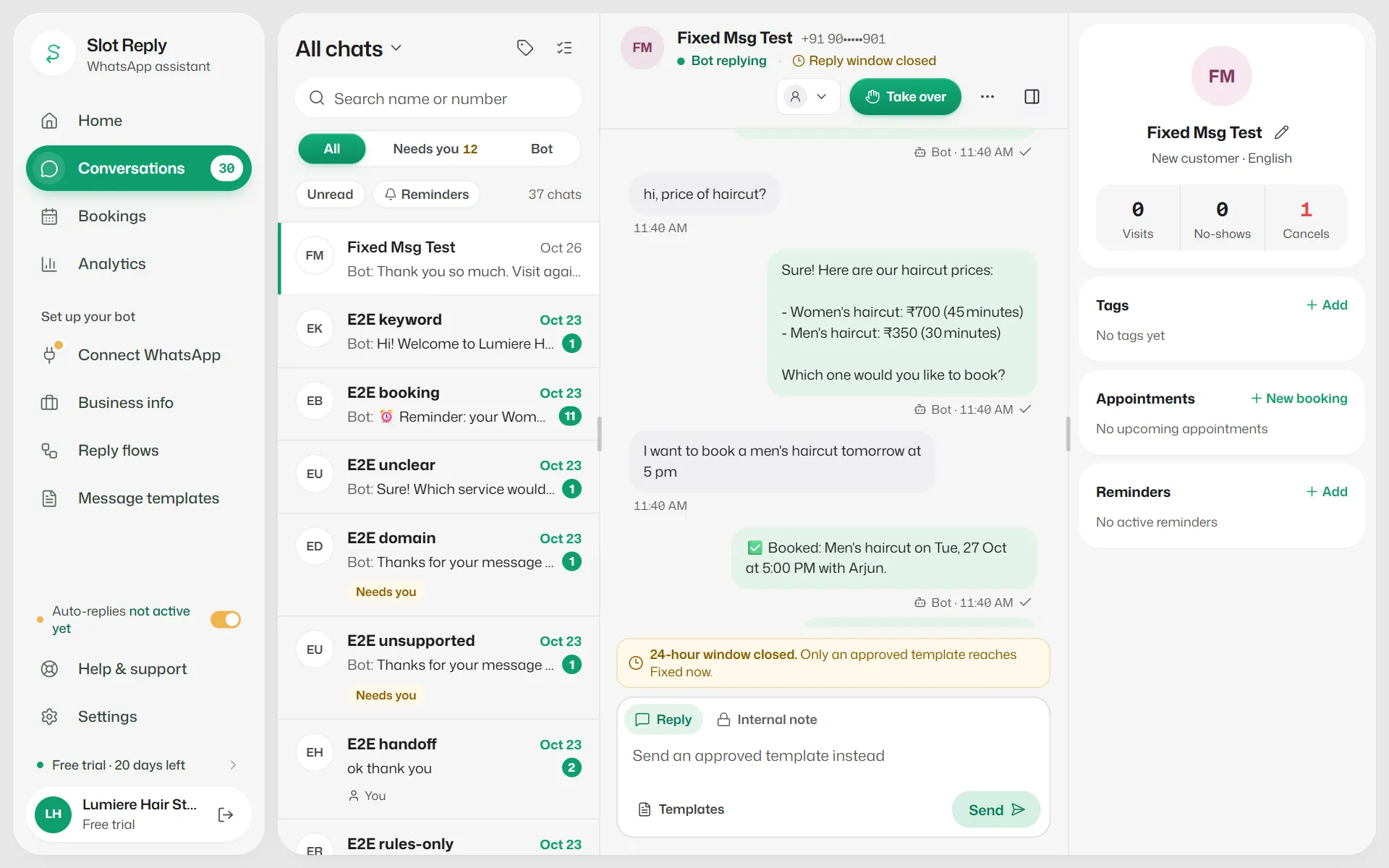
- Search name or number finds a customer.
- All, Needs you and Bot show every chat, chats waiting for your team, and chats the bot is handling.
- The Unread and Reminders switches narrow the list further.
- Select the list's title to switch between All chats, Assigned to me, Unassigned and Resolved.
- The tag icon filters by tag. Pinned chats stay at the top.
Inside a chat
- The header says who is answering: Bot replying, Waiting for a person, Team is replying, Blocked or Auto-replies paused.
- It also shows how long is left to reply, or Reply window closed. See The 24-hour reply window.
- The customer details panel shows their appointments and lets you edit their name.
- The ⋯ menu has Mark as read or unread, Pin, Mark as resolved and Move to inbox.
Work on many chats at once
- 1
Select the select-chats icon above the list.
- 2
Tick the chats, then choose Mark read, Mark unread, Pin, Unpin, Resolve, To inbox or Back to bot.
Resolving from the selection bar sends no closing message.
Related articles
Reply to a customer
Type a message, send a photo or PDF, and know what happens to the bot when you do.
Take over a chat and give it back to the bot
Pause the assistant for one chat while you handle it, then hand it back when you are done.
Assign chats to team members
Make one person responsible for a chat, and filter to the chats assigned to you.
Still need help?
Search the FAQs or contact our team by email or phone.