Reply to a customer
Summary
Type a message, send a photo or PDF, and know what happens to the bot when you do.
Send a message
- 1
Open the chat in Conversations.
- 2
Type in the box at the bottom. Enter sends; Shift+Enter starts a new line.
- 3
To send a photo or PDF, use the paperclip. JPG, PNG or PDF, up to 5 MB.
When you send, you take the chat over: the bot pauses for this chat only. If the customer is in the middle of a flow, you are asked Stop the flow and take over? first.
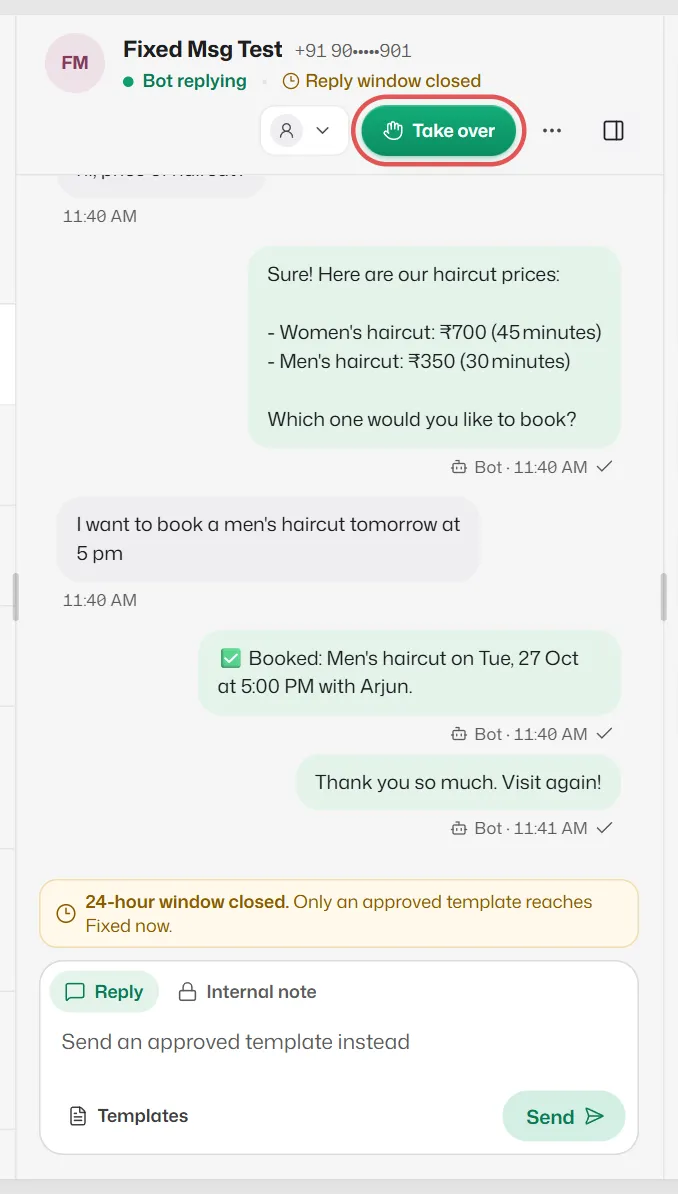
If something goes wrong
- The box says Send an approved template instead.
- The customer last wrote more than 24 hours ago. See The 24-hour reply window.
- Couldn't send shows under a message.
- Select it to see WhatsApp's reason, then Send again. See A message was not delivered.
- "The file is larger than 5 MB."
- Send a smaller photo or a compressed PDF.
Related articles
Take over a chat and give it back to the bot
Pause the assistant for one chat while you handle it, then hand it back when you are done.
Tags, internal notes and quick replies
Label chats with tags, leave notes only your team sees, and save replies you type often.
Send a template from a chat
Reach a customer after the 24-hour window has closed with an approved WhatsApp template.
Still need help?
Search the FAQs or contact our team by email or phone.