Mark a customer as opted out
Summary
Stop automatic messages to a customer who asked you by phone or in person, and undo it if needed.
Mark as opted out
- 1
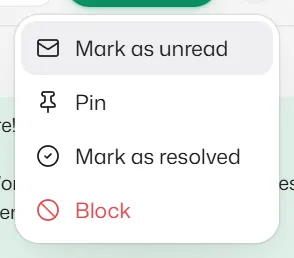
Open the chat, select ⋯ and choose Mark as opted out.
- 2
Confirm. Nothing automatic is sent to them until they send START. They are not sent a message about it.
The chat shows Opted out, and pointing at it says Marked by staff. You can still reply yourself while the 24-hour window is open.
Remove the opt-out
- 1
Select ⋯, then Remove opt-out. Automatic messages start again.
You can only remove an opt-out your team made. If the customer sent STOP, or turned off your messages in WhatsApp, only they can undo it, by sending START.
Related articles
When a customer replies STOP
Customers can stop automatic messages by replying STOP and turn them back on with START.
Block or unblock a customer
Stop all replies and messages to a customer from Slot Reply, for example after spam or abuse.
Record a customer's marketing consent
Keep a record that a customer agreed to get offers and promotions, and withdraw it if they change their mind.
Still need help?
Search the FAQs or contact our team by email or phone.