First-time setup: the Finish setting up checklist
Summary
The steps on Home that take a new account from empty to taking bookings.
The steps
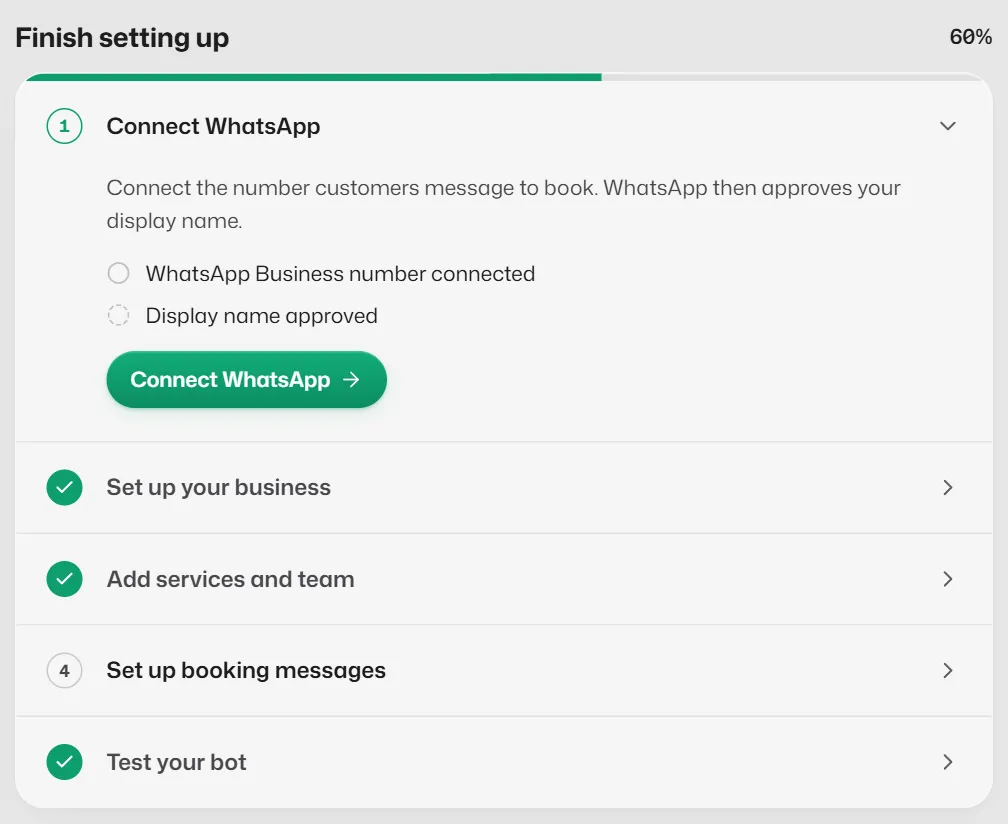
Until every step is done, Home shows Finish setting up with your progress as a percentage. Each step ticks itself once Slot Reply sees it done; a step part-way through says In progress, Waiting for approval or Needs action. The step to do next starts open. Select a step to see each part of it, where it stands and its button.
- 1
Connect WhatsApp. Only the account owner can do this. It shows Waiting for approval while Meta checks that your display name matches your business, usually within 1–3 days. See Connect your WhatsApp number.
- 2
Set up your business: your business name and opening hours. See Opening hours.
- 3
- 4
Set up booking messages. The booking confirmation, moved and cancelled messages (and the reminder, when reminders are on) need templates Meta has approved. See Booking templates.
- 5
Test your bot. Try a booking in the flow builder's Try it, or message your business number from another phone. The step ticks once the bot has answered a message. See Test a flow.
When every step is done the checklist folds to Setup complete; select Show checklist to see it again.
If auto-replies are off
Home says Auto-replies are off. New messages wait for your team. A manager or the owner selects Turn on.
What you should see
- Your test message gets an answer on WhatsApp, and the chat appears in Conversations.
- The sidebar says Auto-replies on.
If something goes wrong
- The sidebar says Auto-replies not active yet.
- Auto-replies are switched on but your number is not connected, or Meta has restricted it. See The bot is not replying.
Related articles
Connect your WhatsApp number
Link your WhatsApp Business number to Slot Reply through Meta, so the assistant can answer on it.
Fill in your business profile
Your business name, contact details, address and description: what the assistant tells customers about you.
Turn auto-replies on or off
Pause the assistant for the whole business, for example during a team meeting, and switch it back on.
Still need help?
Search the FAQs or contact our team by email or phone.