Find your way around the flow builder
Summary
The toolbar, the Add a step panel, the board and the settings panel, and how drafts, publishing and checks work.
The three parts of the screen
- Add a step (left): search, READY-MADE FLOWS, then the steps in groups: TRIGGERS, MESSAGES, BOOKING and LOGIC & TEAM.
- The board (middle): your steps as cards, joined by lines. A trigger card carries a Starts the flow tag.
- The settings panel (right): opens when you click a step, with that step's settings.
On a narrow screen the Add a step panel lies over the board; the Add a step button brings it back.
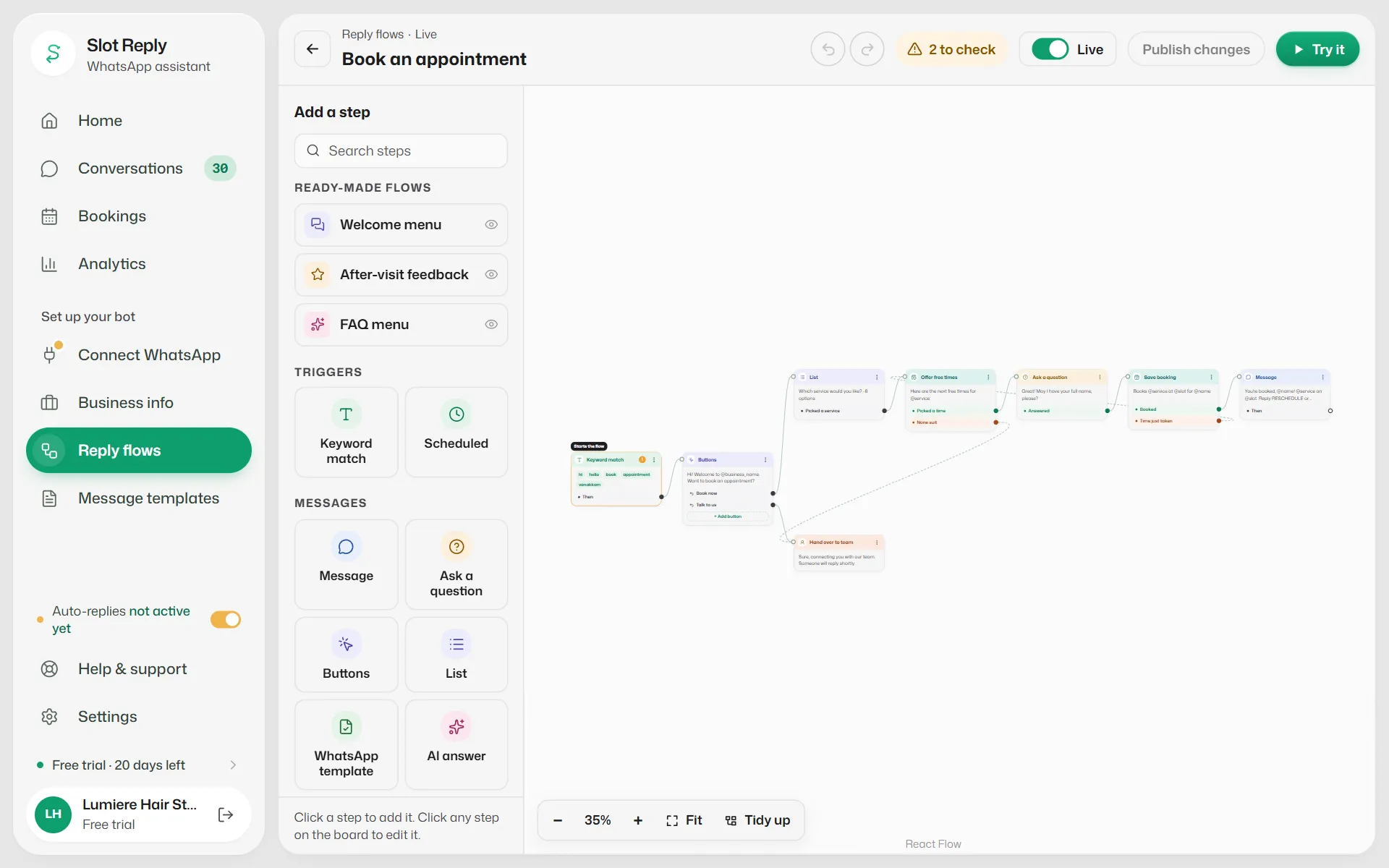
The toolbar
- The back arrow returns to Your flows. Next to it is the flow's name, which you can change (an empty name saves as "Untitled flow").
- The status beside Reply flows says where your work is: Saving…, Draft saved, Not published, Live, Switched off and so on.
- Undo and Redo (Ctrl+Z, and Ctrl+Shift+Z or Ctrl+Y).
- The checks button: All good, or N to check (red when something blocks going live, amber for warnings). See Fix the problems in the checks list.
- The Live switch: on means customers get this flow.
- Publish changes: makes what is on screen the version customers get. It is greyed out when nothing has changed.
- X (only on a live flow with unpublished changes): throws the changes away and goes back to the live version.
- Try it: chat with your flow. See Test a flow with Try it.
Add a step
- 1
Click a step on the board first if you want the new one to follow it. The panel's footer says Click a step to add it after that step.
- 2
Click a step in Add a step, or drag it onto the board.
- 3
The new step's settings open on the right. Fill them in and select Done.
With nothing selected, the new step goes in the middle of the board, not joined to anything yet.
Join steps together
- Each card has one row per way out, with a dot at its right edge. Click an empty dot to open What happens next?: pick a new step, or choose a step already on the board under Or carry on at a step already here and select Connect.
- Or drag from a dot onto another card. You cannot connect to a trigger or to the same step.
- In the settings panel, every way out has a Goes to box: Choose a step…, End the flow here, or for optional ways out Nothing (the flow ends there).
- Point at a line to see + (Insert a step here) and × (Remove connection).
- A dashed line is the "didn't happen" way out of a step, such as Not booked.
Edit, copy and delete steps
- Double-click a card, or use its ⋮ menu → Edit, to open its settings.
- The ⋮ menu also has Duplicate (Ctrl+D), Remove connections and Delete (Del key). A deleted step can be brought back with Undo in the message that appears.
- The only trigger in a flow cannot be deleted.
- In the settings panel, Cancel puts the step back as it was when you opened it, Done closes the panel, and Delete removes the step. Changes show on the board as you type.
- Every panel has More options at the bottom with Name on the board: a label for the card that only you see.
- A ! on a card means the step has a problem (red: must fix, amber: worth a look). An orange dot on its left edge means nothing leads to it yet.
Move around the board
- Scroll to move around. Hold Ctrl (⌘ on a Mac) and scroll to zoom.
- The bar at the bottom left has −, the zoom level, +, Fit (shows the whole flow) and Tidy up (lines the steps up neatly).
Drafts, going live and publishing
- Everything you do is a draft. It saves itself a moment after you stop typing (Ctrl+S saves straight away). Customers never see a draft.
- Turn Live on to go live for the first time. You are asked Go live with this flow?.
- Later edits stay in the draft until you select Publish changes and confirm Publish these changes?. Customers get the new version from their next message.
- A customer who is part-way through a flow finishes the version they started.
- Turning Live off asks Pause this flow?. Customers then get your AI, your FAQ answers or your team instead, depending on When nothing else answers. Your draft is kept.
- If someone else changed the flow while you had it open, you see Reload latest and Keep mine as the draft.
If something goes wrong
- "Fix N problems before going live."
- Something must be fixed first. Open the checks button; see Fix the problems in the checks list.
- "The AI isn't answering."
- The flow has an AI answer step, but When nothing else answers is not set to AI, so the step always goes down Needs a person. Select Change in Business info →.
Related articles
Build a flow and make it live
A worked example: a welcome menu with three buttons, built from scratch, tested and made live.
Fix the problems in the checks list
What the checks button means and how to fix the most common problems before going live.
Test a flow with Try it
Chat with your draft as if you were a customer, without booking anything or sending any message.
Still need help?
Search the FAQs or contact our team by email or phone.