Fix the problems in the checks list
2 min readManagers and owners
Summary
What the checks button means and how to fix the most common problems before going live.
Read the list
- 1
Select the checks button in the toolbar (N to check).
- 2
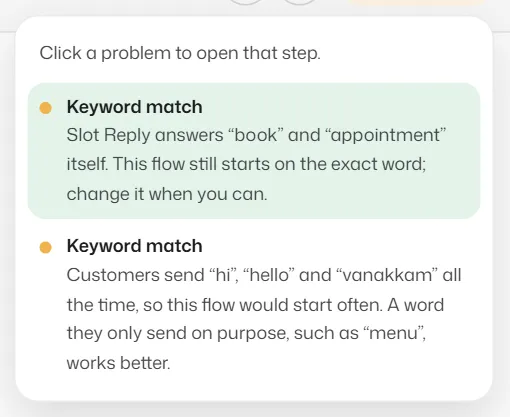
Problems that block going live are listed first, with a red dot. Warnings follow, with an amber dot.
- 3
Click a problem to open that step's settings. The same problems show at the bottom of the step's panel.
Warnings never stop you going live. If the flow could not be checked just now, your draft is safe and is checked again when you publish.
Common problems
- "… doesn’t lead anywhere": a button, choice or way out has no next step. Choose one under Goes to, or End the flow here.
- "Nothing leads to this … step, so no customer reaches it." (warning): join a way out to it, or delete it.
- "Add a trigger: without one, no message starts this flow."
- "These steps lead back to themselves without ever waiting for the customer": a loop. Put a step that waits, such as Ask a question, inside it.
- "More than one step is connected to the same way out of this step": each way out can lead to one step only. Remove the extra connection.
- "A connection points at a step that no longer exists": select Remove the unused connection(s) in the list.
- "A flow can have up to 200 steps."
Related articles
Still need help?
Search the FAQs or contact our team by email or phone.