Saved answers and @variables
2 min readManagers and owners
Summary
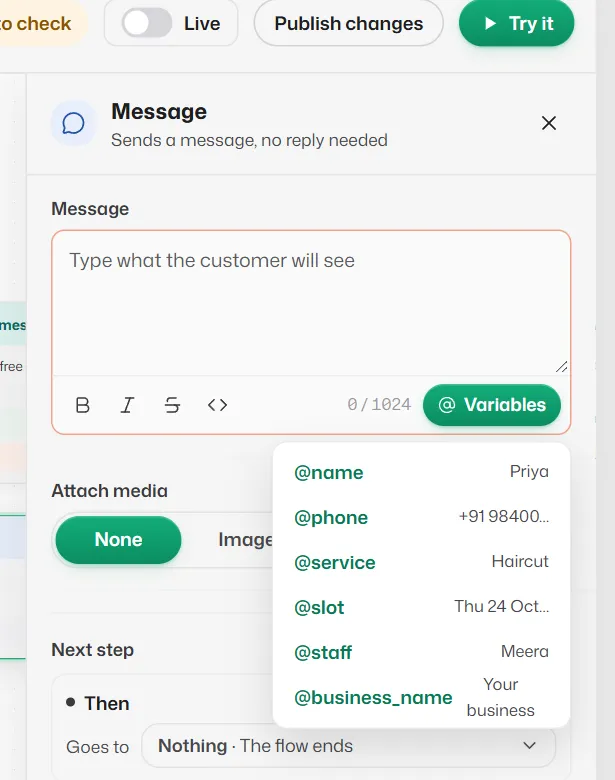
Put the customer's name, their booking or an earlier answer into a message by typing an @word.
The @words you can use
- @name: the customer's name. @phone: their number.
- @service, @slot, @staff, @date and @time: from their booking, once a step has found one.
- @business_name: your business name.
- Any answer an earlier step saved, such as @answer or @feedback.
Select Variables under a text box to insert one, or type @ and the name. If a value is empty, the word before it is dropped too, so "with @staff" disappears rather than reading "with".
Which steps save answers
Where @words work
- Messages, questions, the text above buttons and lists, headers, footers, retry lines, hand-over messages and booking wording.
- Not in button text, list choice titles or AI instructions.
If something goes wrong
- "No step saves @X, so customers would see “@X” as written."
- Pick a variable from the Variables list, or remove the @.
- "@X is only saved by a step after this one, so it is empty here."
- Move the message after the step that saves the answer.
- "An earlier step also saves its answer as @X."
- Give this answer its own name under Save as.
Related articles
Still need help?
Search the FAQs or contact our team by email or phone.