The Ask a question step
2 min readManagers and owners
Summary
Asks the customer something, checks the kind of answer, and saves it as an @word for later steps.
Settings
- Question: what the bot asks (required).
- Answer must be: None (anything), Text, Number, Email, Phone number, Date or Image. Number adds Minimum and Maximum.
- Save as: the @word the answer is kept under, such as @answer or @feedback. Letters, digits and _ only. Saving as @name also fills in the customer's name on the chat if it is empty.
- Next step → Answered: required.
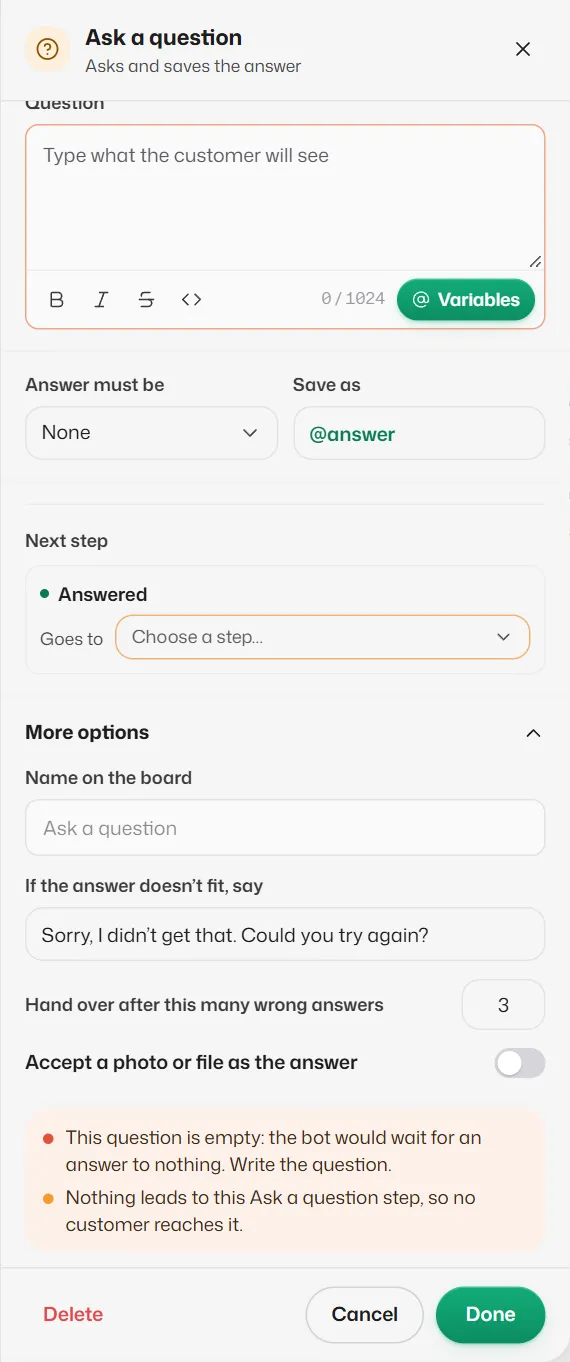
More options
- If the answer doesn’t fit, say: sent when the answer is the wrong kind. Starts as "Sorry, I didn’t get that. Could you try again?" Only this line is sent, not the question again.
- Hand over after this many wrong answers: after this many (1 to 10, new questions start at 3), the chat goes to your team.
- Accept a photo or file as the answer: lets a photo count as the answer even when Answer must be is not Image.
How answers are checked
- Email addresses are saved in lower case. Phone numbers need 8 to 15 digits.
- Dates are saved like "Thu, 24 Oct".
- While the bot waits here, a customer who asks to cancel, move a booking or talk to a person is taken there instead. Anything else they type is treated as their answer.
If something goes wrong
- "This question is empty: the bot would wait for an answer to nothing."
- Write the question.
- "The minimum is more than the maximum."
- Swap the two numbers.
Related articles
Still need help?
Search the FAQs or contact our team by email or phone.