The WhatsApp template step
1 min readManagers and ownersGrowth and Pro
Summary
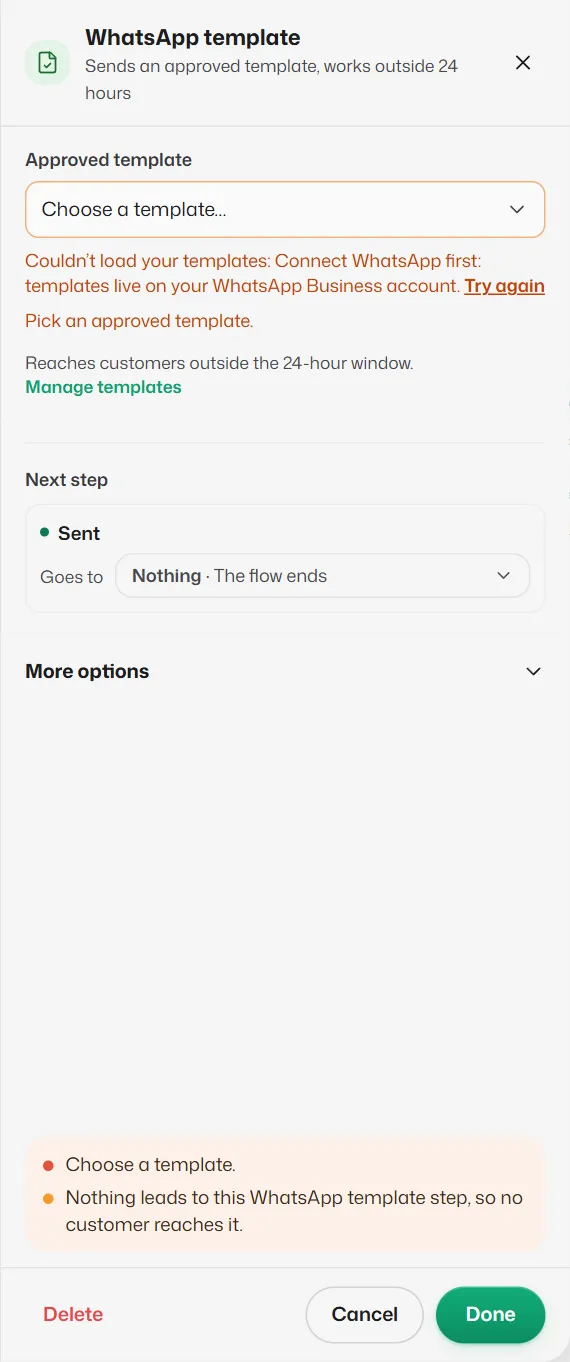
Sends an approved WhatsApp template, so the message arrives even outside the 24-hour window.
Before you start
- Your number is connected and the template is Approved. See What message templates are.
Settings
- Approved template: choose from your approved templates (shown as name · category). A preview appears once chosen.
- Fill the variables: one box per {{1}}, {{2}} and so on in the template. Choose an @word (@name, @service, @slot, @staff or a saved answer) or Text of my own…. An empty value is sent as "-".
- Next step: one way out per quick-reply button in the template (each required). A template without buttons has a single optional Sent.
Manage templates under the panel opens Message templates.
If something goes wrong
- "Couldn't load your templates: Connect WhatsApp first."
- Templates belong to your WhatsApp number. The owner connects it first.
- "Fill in every template value."
- Every {{n}} in the template needs something chosen in Fill the variables.
Related articles
Triggers: Keyword match and Scheduled
The first step of every flow decides what starts it: words a customer types, or a set time after each visit.
What message templates are
Messages approved by WhatsApp in advance, needed for anything you send more than 24 hours after a customer's last message.
The 24-hour reply window
WhatsApp only lets businesses send normal messages within 24 hours of the customer's last message.
Still need help?
Search the FAQs or contact our team by email or phone.