What reply flows are
Summary
Step-by-step conversations with buttons and lists that start when a customer types certain words, or a set time after a visit.
When to use one
- A welcome menu with buttons such as Book a time, Prices and Talk to us.
- An FAQ menu where customers pick a topic from a list.
- A feedback message sent a few hours after each visit (Growth and Pro).
You do not need a flow for bookings: the assistant books, moves and cancels on its own. See How customers book. Use a flow when you want to guide customers through choices you design.
How a flow is made
- Every flow starts with a trigger: the words that start it (Keyword match) or a time after each visit (Scheduled).
- After the trigger come steps: messages, questions, buttons, lists, an AI answer, a booking, a condition, a hand-over to your team or an end.
- Steps are joined by ways out. A Buttons step has one way out per button, a Condition has two, a Message has one. Each way out leads to the next step.
- You build the flow on a board in the flow builder. Each step's settings open in a panel on the right.
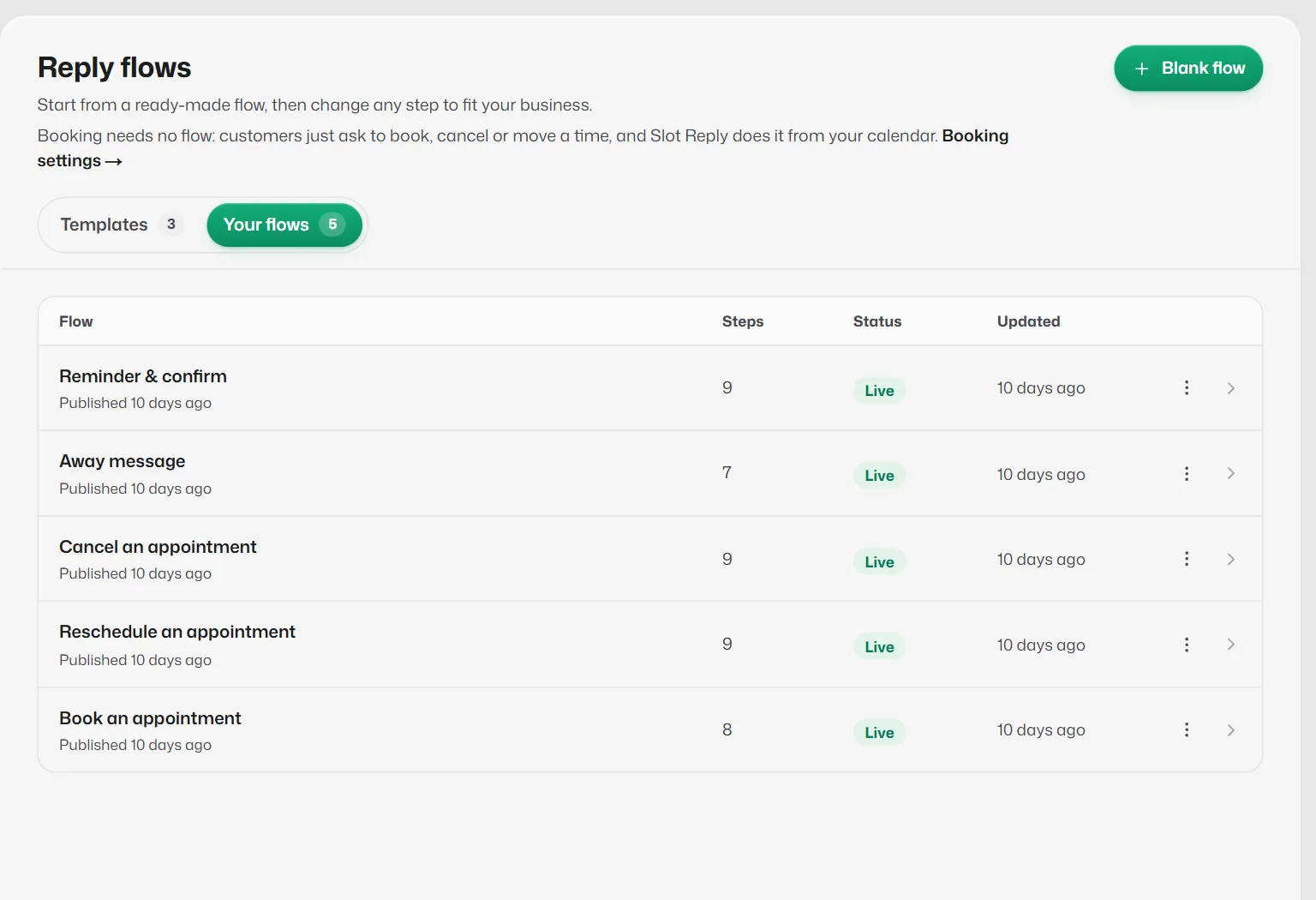
The Reply flows screen
- Templates: ready-made flows. See The ready-made flows.
- Your flows: each flow with its status: Draft (never published), Live (customers get it) or Paused (switched off, the draft is kept).
- A line under each flow says Not published yet, Has changes not yet published, or when it was published.
- A flow's menu has Open builder, Duplicate (makes a switched-off copy), Pause flow or Go live, and Delete.
Read next
Related articles
Find your way around the flow builder
The toolbar, the Add a step panel, the board and the settings panel, and how drafts, publishing and checks work.
Build a flow and make it live
A worked example: a welcome menu with three buttons, built from scratch, tested and made live.
The ready-made flows
Three flows you can start from: Welcome menu, After-visit feedback and FAQ menu.
Still need help?
Search the FAQs or contact our team by email or phone.