The Condition step
2 min readManagers and owners
Summary
Checks one thing about the customer or their answer, then goes one of two ways.
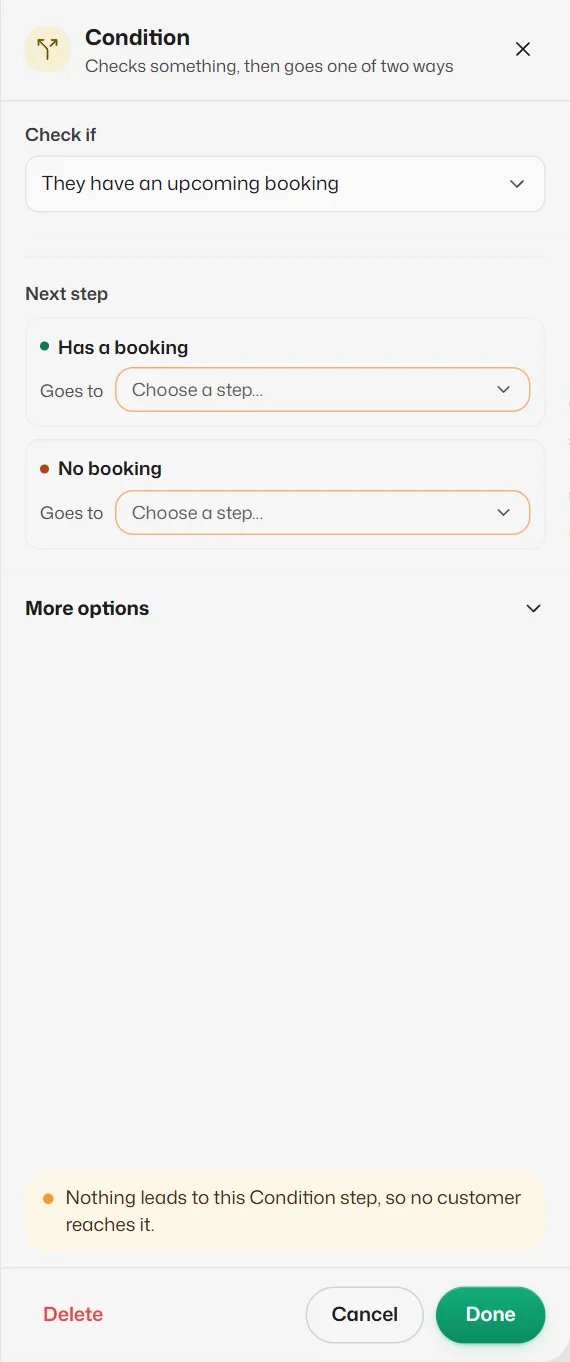
Check if
Pick what to check. Both ways out are required.
- They have an upcoming booking → Has a booking / No booking. On the Has a booking side, @service, @date, @time and @staff hold that booking's details.
- They are a new customer → New customer / Returning customer. New means they have never booked, not that it is their first message.
- You’re open right now → Open / Closed, from your opening hours and holidays.
- Their answer is… → Matches / Doesn’t match. Choose the saved Answer (an @word from an earlier step), Contains or Exactly, and the Value to match, for example "bridal". Capital letters do not matter.
- Their message contains… → Matches / Doesn’t match. Type the Words to look for, separated by commas. Checks the customer's latest message.
Custom rules (older flows and After-visit feedback)
Flows made earlier, and the After-visit feedback ready-made flow, can use Custom rules, with ways out Yes and No.
- Go down “Yes” when: All rules match or Any rule matches.
- Each rule picks a value (such as @rating), a test (is, is not, contains, exists, is empty) and what to compare it with.
If something goes wrong
- "Choose the saved answer to check."
- With Their answer is…, pick the @word an earlier step saved. If none appears, fill in Save as on that earlier step.
- "Type the answer to match" or "Type the words to look for."
- Fill in the value the condition compares with.
Related articles
Saved answers and @variables
Put the customer's name, their booking or an earlier answer into a message by typing an @word.
The Ask a question step
Asks the customer something, checks the kind of answer, and saves it as an @word for later steps.
The Buttons step
Sends a message with up to 3 tap-able buttons. Each button leads to its own next step.
Still need help?
Search the FAQs or contact our team by email or phone.