The Book appointment step
3 min readManagers and owners
Summary
Books, moves, cancels or looks up an appointment inside a flow, with real free times from your diary.
What it does
Choose one of four jobs under What it does. Changing it resets the settings below but keeps the step's connections.
- Book: offers free times and books one.
- Reschedule: moves the customer's upcoming booking.
- Cancel: cancels it, after asking them to reply YES.
- Check: tells them when their next booking is.
@service, @date, @time, @staff and @name in this step's messages fill in with the appointment.
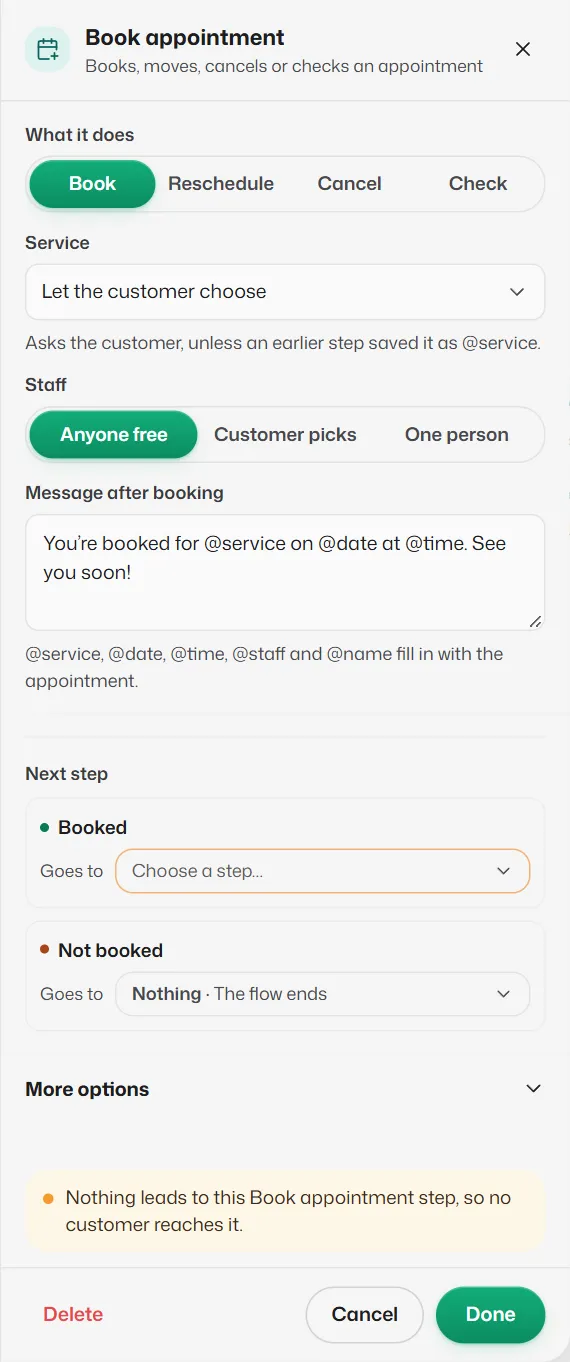
Book: settings
- Service: Let the customer choose (asks them, unless an earlier step saved @service) or one fixed service.
- Staff: Anyone free, Customer picks, or One person (then choose Who). Add staff under Bookings → Staff first.
- Message after booking: starts as "You’re booked for @service on @date at @time. See you soon!"
- Next step: Booked and Not booked.
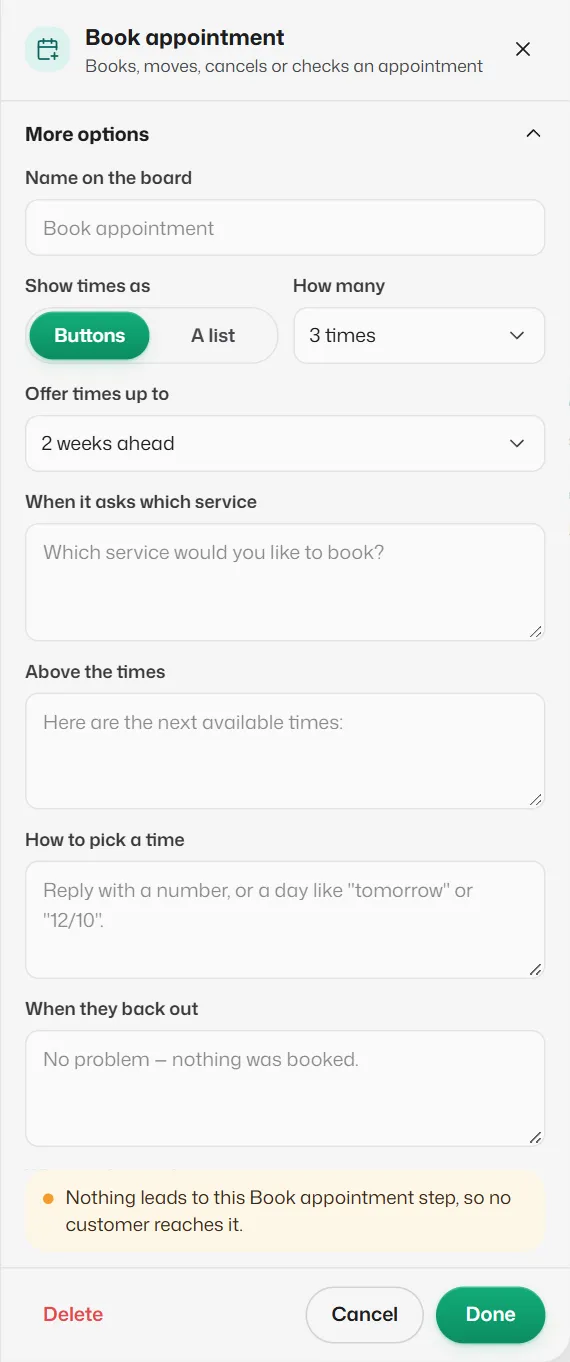
Book: More options
- Show times as: Buttons (1 to 3 times) or A list (3, 5, 8 or 10 times), with How many.
- Offer times up to: As far as your booking rules allow, 1 week, 2 weeks or 1 month ahead.
- Wording you can change: When it asks which service, Above the times, How to pick a time, When they back out, When nothing is free and When it hands the chat over. Leave a box empty to use the wording shown in grey.
Reschedule, Cancel and Check
- Reschedule: Message after moving ("Done! Your @service is now on @date at @time."). More options: how many new times to offer (3, 5 or 8) and wording for several bookings, the new times, keeping it, no booking and when it can't be changed. Ways out: Rescheduled and Not rescheduled.
- Cancel: Message after cancelling. More options: Ask YES before cancelling (leave on unless a Buttons step just before already asks) and wording fields. Ways out: Cancelled and Not cancelled.
- Check: Message with their booking ("Your next visit: @service on @date at @time."). Ways out: Booking found (optional) and No booking (required, because nothing is said when there is no booking).
What customers experience
- Times are real free times from your hours, staff and booking rules. The customer replies with a number, taps a time, or types a day like "tomorrow".
- A reply the bot cannot read gets "Sorry, I didn't catch that." and one more try, then goes down Not booked.
- Typing no or cancel backs out with "No problem — nothing was booked."
- If the "didn't happen" way out leads nowhere, the chat goes to your team, unless the customer backed out themselves.
If something goes wrong
- "This booking step is set to a service that no longer exists."
- Choose another service under Service.
- "“X” is switched off, so this step tells customers it can't be booked."
- Switch the service back on in Business info → Services & prices, or choose another.
- "Choose the staff member to book with."
- With One person, pick someone under Who.
- "This step cancels without asking."
- Turn Ask YES before cancelling back on, or put a Buttons step before it that asks.
Related articles
How customers book, move and cancel on WhatsApp
What the assistant does when a customer asks for an appointment, wants to change it or cancel it.
Booking rules
Time slots, notice, how far ahead people can book, who they book with, no-shows and freed-up times.
The Condition step
Checks one thing about the customer or their answer, then goes one of two ways.
Still need help?
Search the FAQs or contact our team by email or phone.