Triggers: Keyword match and Scheduled
3 min readManagers and owners
Summary
The first step of every flow decides what starts it: words a customer types, or a set time after each visit.
Keyword match
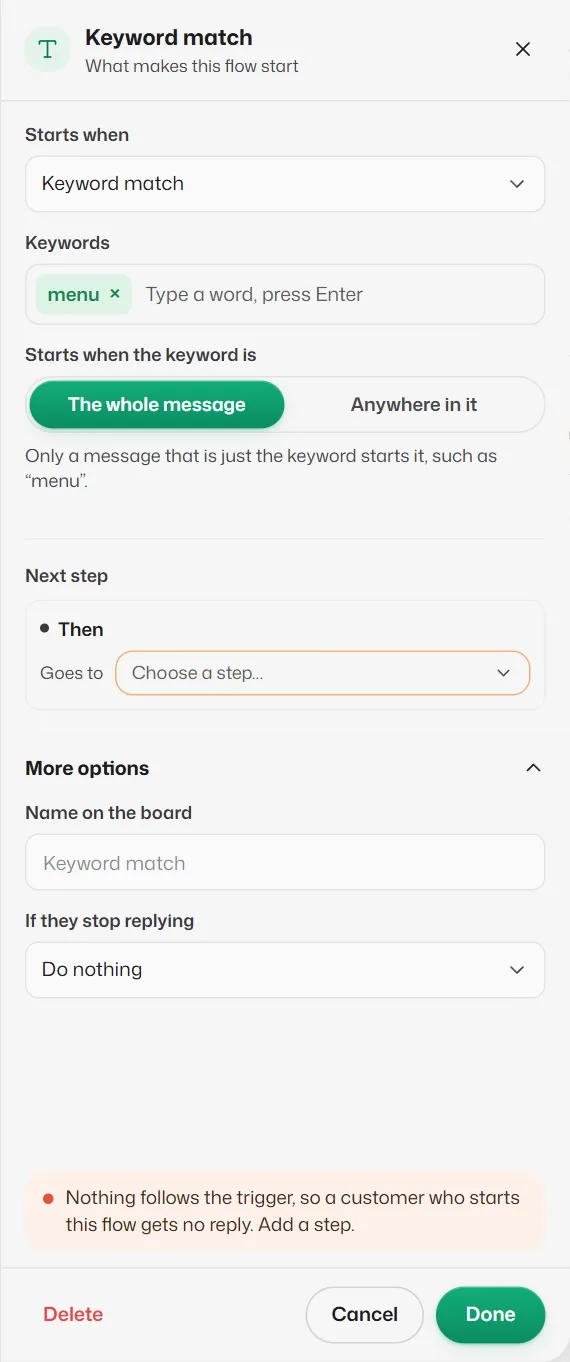
- Starts when: Keyword match. (You can switch the same card to Scheduled here.)
- Keywords: type a word and press Enter or a comma. Add as many as you like; they are stored in lower case. A new trigger starts with menu.
- Starts when the keyword is: The whole message starts the flow only when the message is just the keyword, such as "menu". Anywhere in it starts it whenever the word appears in a longer message. Words match as whole words, so "price" does not match "priceless".
- Next step → Then: the first step of the flow. Required.
- More options → If they stop replying: Do nothing, Remind them after 1 hour or Remind them after 3 hours. The reminder ("Just checking in: reply here whenever you’re ready.") is sent once, from whichever step is waiting for them.
Choosing good keywords
- Words Slot Reply already answers itself cannot start a flow: book, cancel, reschedule, appointment, stop and start, and requests to book, cancel, move or talk to a person in any language.
- Greetings and short replies (hi, hello, ok, yes, thanks, vanakkam) are allowed but warned about, because customers send them all the time.
- Only one live flow can answer a word. If another live flow already uses it, choose a different word.
- When a customer asks to book in a longer message that happens to contain your keyword, the booking assistant answers instead; only the keyword on its own starts the flow.
Scheduled
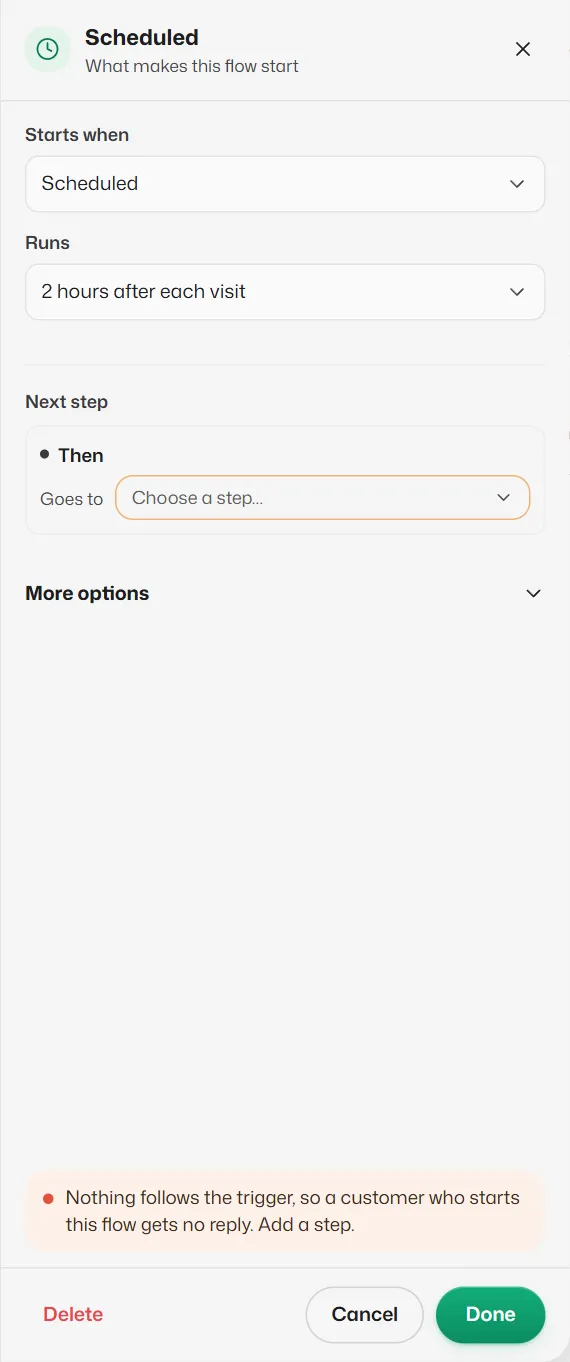
Growth and Pro. Starts the flow by itself a set time after each appointment.
- Runs: 2 hours after each visit or 1 day after each visit.
- Next step → Then: the first message.
- Start a scheduled flow with a WhatsApp template step: the customer may not have written in the last 24 hours, and only a template reaches them then.
- Reminders *before* an appointment are not set here. Use Settings → Booking rules → Reminders; see Appointment reminders.
If something goes wrong
- "The trigger has no words, so no message starts this flow."
- Add at least one keyword.
- "Nothing follows the trigger, so a customer who starts this flow gets no reply."
- Choose a step under Then.
- "“X” already starts your live flow “Y”."
- Only one flow can answer a word. Choose another word, or change the other flow.
Related articles
The Message step
Sends a message, with an optional photo, video or document, and carries straight on. No reply needed.
What happens while a customer is in a flow
When the bot waits for a reply, how long it waits, and what happens if the customer asks for something else.
Fix the problems in the checks list
What the checks button means and how to fix the most common problems before going live.
Still need help?
Search the FAQs or contact our team by email or phone.